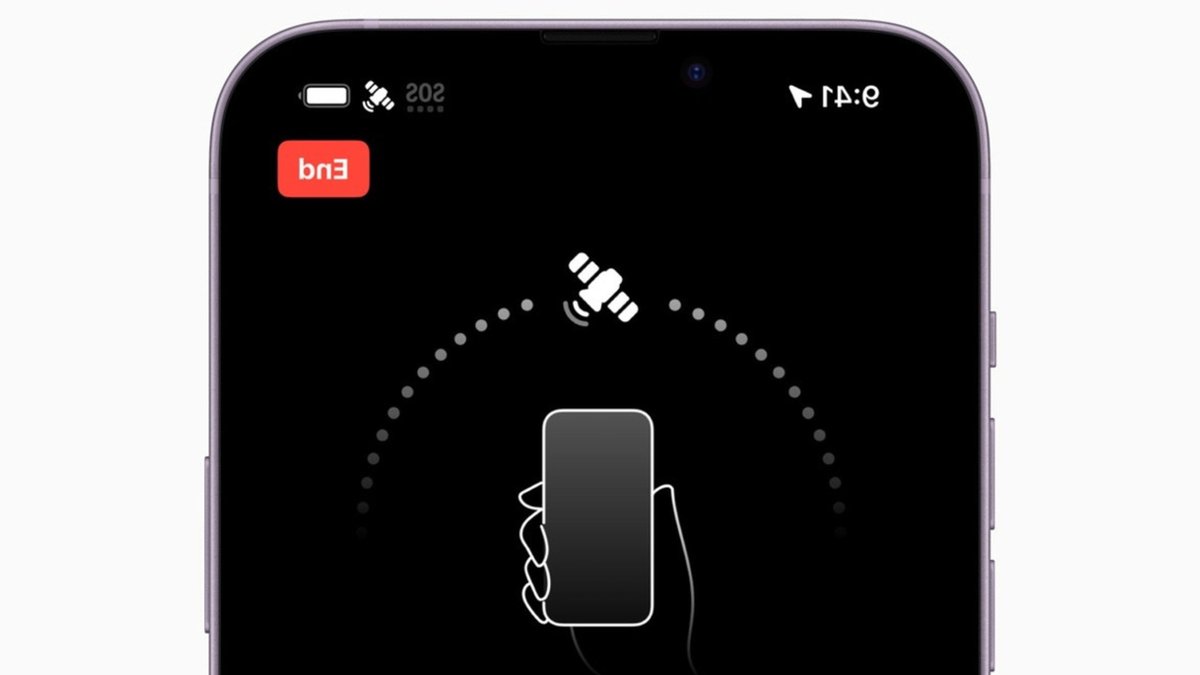
An iPhone stuck in SOS mode disrupts connectivity, leaving users with only emergency services when regular service fails. The feature acts as a safety net, allowing calls to 911 and location sharing even without a standard network. For travelers or those in remote areas, the small red letters in the corner can create unexpected problems.
How SOS mode functions
When an iPhone shows “SOS” or “SOS only,” it indicates the device has lost its primary cellular connection but can still reach emergency services through alternative networks. For iPhone 14 and newer models, this includes Apple’s satellite network, available in 18 countries: Australia, Austria, Belgium, Canada, France, Germany, Ireland, Italy, Japan, Luxembourg, Mexico, the Netherlands, New Zealand, Portugal, Spain, Switzerland, the UK, and the U.S.
The feature supports more than emergency calls. Users can share their location with contacts, send medical ID details to responders, request roadside help, and notify loved ones during crises. If the screen displays “No Service” or “Searching,” the phone has no network access at all—emergency or otherwise.
Steps to restore normal service
Apple’s support page recommends basic troubleshooting before assuming the worst. Toggle Airplane Mode on for 15 seconds, then turn it off. If that fails, a full power cycle—turning the phone off and restarting it—often resolves temporary network glitches.
Persistent issues may stem from outdated software. Checking for iOS updates under Settings > General > Software Update can help. Enabling automatic updates prevents future problems, though it won’t fix an existing lockout.
For iPhones with multiple SIM cards or eSIMs, a disabled line could be the culprit. In Settings > Cellular, users can view active and inactive lines. Selecting a line and tapping Turn On This Line may restore service. Reinserting a physical SIM can also resolve the issue.
Related: NVIDIA Forms Open Secure AI Alliance for Cyber Defense
Carrier settings updates offer another potential solution. These can be checked manually in Settings > General > About. If no update appears, the carrier may need to intervene. Without cellular service, contacting them requires Wi-Fi or another device.
Handling SOS mode while traveling
Satellite connectivity, while expanding, has limitations. Apple’s network requires a clear view of the sky, and connections can be slow. The company’s Emergency SOS via satellite guide recommends positioning the phone away from obstructions. Testing the connection before traveling can prevent frustration later.
Most SOS mode issues are temporary, not hardware failures. The solutions are straightforward, though not always obvious. While the feature provides a safety measure, it doesn’t replace reliable service. Those who depend on their phones in remote areas might consider a backup plan, such as a secondary device or a local SIM.
A quick restart often resolves the problem.
For users concerned about broader connectivity risks, recent developments in Wi-Fi router security highlight vulnerabilities in home networks. While unrelated to SOS mode, these issues show the importance of maintaining multiple ways to stay connected.


